Getting Started with Choon: Tag Your Entire DJ Library in Minutes
You just downloaded 200 tracks from Bandcamp. They're sitting in a folder called "new music april." Half of them don't have genre tags. The other half say "Electronic." You know what each track sounds like — but Rekordbox doesn't, and neither does the CDJ you'll be standing behind on Saturday.
Choon fixes this. It reads your track metadata, cross-references it against music databases, and uses AI to tag every track with genre, region, era, and vibe — then syncs those tags straight into Rekordbox's My Tag system so you can filter your library on the fly, even mid-set.
Here's how to set it up, start to finish.
Step 1: Create an Account
Head to choon.app and sign up. Every account starts with 100 free tagging credits — enough to tag your first 100 tracks and see if the results make sense for your library.
No credit card required. You can always add more credits later if you want to tag a larger collection.
Step 2: Download the Mac App
After signing up, download the Choon companion app from choon.app/download. It's a native Mac app — install it like any other, drag to Applications, and launch.
Sign in with the same account you created on the web.
The Mac app is where everything happens: scanning your library, running AI analysis, reviewing tags, and syncing to Rekordbox. Your music files never leave your computer — Choon reads metadata locally and sends only track names and artist info to generate tags.
Step 3: Add Your Music Library
Click + New Library in the sidebar and select the folder where your music lives. Choon scans the folder and imports all audio files it finds — MP3, FLAC, AIFF, WAV, and M4A are all supported.
The initial scan reads each file's embedded metadata: artist, title, album, BPM, and any existing genre tags. This takes a few seconds for most libraries.
What happens to your existing genre tags? Choon takes a snapshot of every track's current genre field the moment you add the library. If you ever want to undo what Choon wrote, you can restore your original genres from this snapshot (File > Restore Original Genres). More on safety below.
Step 4: Tag Your Tracks
Select the tracks you want to tag — you can select all with ⌘A, or pick a subset — and click Tag Tracks (or press ⌘T).
Choon's AI reads each track's metadata, cross-references it against the Discogs music database for additional context (label, release country, styles), and returns four types of tags:
- Genre — 50+ options from Deep House to Acid Techno to Jungle. Subgenres include their parent: "Deep House" automatically includes "House."
- Region — Where the sound comes from: Detroit, Berlin, UK, Japan, and more. Tracks can have multiple regions.
- Era — Decade-level timeline (90s, 2000s, 2010s, 2020s). Based on release date.
- Vibe — The hardest tags to assign manually and the most useful on the dance floor. Peak Time, After Hours, Hypnotic, Euphoric, Dark, Atmospheric, Percussive, Melodic, and more.
Each tag type uses a vocabulary you control — head to Settings > Tagging to choose which genres, regions, and vibes you want. The AI only uses your selected vocabulary, so you won't get tags you didn't ask for.
Tagging runs in the background. You'll see results populate as each batch completes.
Step 5: Review and Edit
AI tagging isn't perfect. Some tracks will get tags that don't match your ear — maybe it called your favorite deep cut "Tech House" when you'd file it under "Minimal."
Right-click any track and choose Edit Tags to open the tag editor sidebar. From here you can:
- Check or uncheck any genre, region, vibe, or era
- Add custom tags that aren't in the default list
- See the AI's confidence for each tag (useful for borderline calls)
The philosophy: AI gets you 80-90% of the way there in seconds. You spend your time on the 10-20% that needs a human ear.
Step 6: Sync to Rekordbox
This is where it gets powerful. Click Sync to Rekordbox in the sidebar to open the sync wizard.
Choon maps your tags into Rekordbox's My Tag system across four categories:
- My Tag 1 (Genre) — Your genre tags, merged with whatever genre tags already exist in Rekordbox. Choon never removes your existing tags — it only adds.
- My Tag 2 (Region) — Regional tags.
- My Tag 3 (Vibe) — Vibe tags.
- My Tag 4 (Era) — Era tags.
The sync wizard shows you a preview of what will change before writing anything. Review it, then click Sync.
Your existing Rekordbox tags are always preserved. If a track already has "House" in My Tag 1 and Choon wants to add "Deep House," the result is both tags. Nothing gets deleted.

Step 7: Filter on CDJs
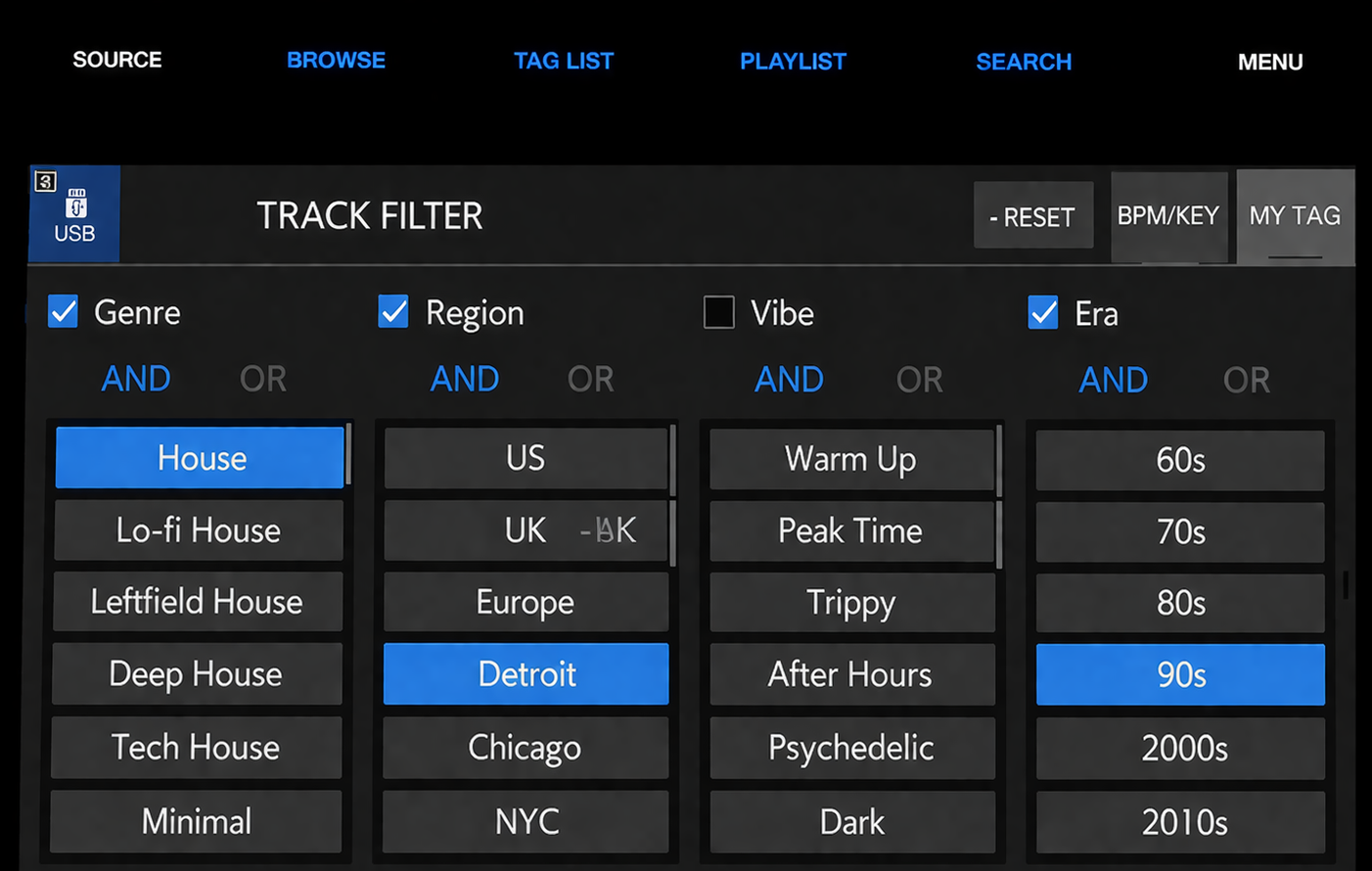
Once your tags are synced, you can filter your library in Rekordbox — and on CDJs that support My Tag filtering (CDJ-3000, XDJ-XZ, and others).
The real power is combining tags. In Rekordbox's tag filter panel:
- Select Dark + Techno + Berlin to find your darkest Berlin techno
- Switch to Euphoric + House for the peak-time moment
- Filter by After Hours + Minimal + Hypnotic when it's 4am and the crowd wants to float
This is what Choon is for: not just tagging tracks, but making those tags usable in the moment, on the hardware DJs actually use.
Your Library is Safe
DJs are (rightfully) protective of their metadata. Here's exactly what Choon touches, what it doesn't, and how to undo anything.
What Choon writes to your files
Only the genre field. When AI tagging completes, Choon writes the combined genre tags (e.g. "Deep House - House - Minimal") to the standard genre metadata field in your audio file. This is the same field that iTunes, Traktor, and Rekordbox all read.
Region, vibe, and era are stored in Choon's database only — they don't touch your files. They reach Rekordbox through the My Tag sync, not through file metadata.
How to disable file writing entirely
If you don't want Choon to write anything to your audio files, go to Settings > File Writing and turn off "Write tags to file metadata." Tags will still be saved in Choon's database and will still sync to Rekordbox — they just won't be embedded in the audio file itself.
You can also customize the delimiter used between genre tags. The default is " - " (e.g. "Deep House - House"), but you can switch to ", " or "; " or "/" depending on what your other software expects.
Genre snapshots
The moment you add a library to Choon, it takes a snapshot of every track's existing genre field. If you ever want to go back to what you had before Choon touched anything, go to File > Restore Original Genres. You'll see a before/after comparison for every changed track, and can restore with one click.
Rekordbox database backup
Before every Rekordbox sync, Choon creates a backup of your Rekordbox database. If anything goes wrong during the sync — or if you just don't like the results — your original Rekordbox state is preserved.
The golden rule: add, never remove
Choon never deletes existing tags from your files or from Rekordbox. It only adds. If a track already has "House" as its genre and Choon assigns "Deep House," the result is "Deep House - House" — your original tag is still there.
This applies to both file metadata and Rekordbox My Tags. Choon is additive-only by design.
Keyboard Shortcuts
| Action | Shortcut |
|---|---|
| Tag selected tracks | ⌘T |
| Search tracks | ⌘F |
| Export library to JSON | ⇧⌘E |
| Open Settings | ⌘, |
| Open Help | ⌘? |
What's Next
Once your library is tagged and synced, the day-to-day workflow is simple: import new tracks, select them, press ⌘T, review a few edge cases, sync. A few minutes of work gives you a library that's filterable on every axis that matters during a set.
If you have questions, feature requests, or feedback, reach out at support@choon.app. We're DJs too — we built this because we needed it.